
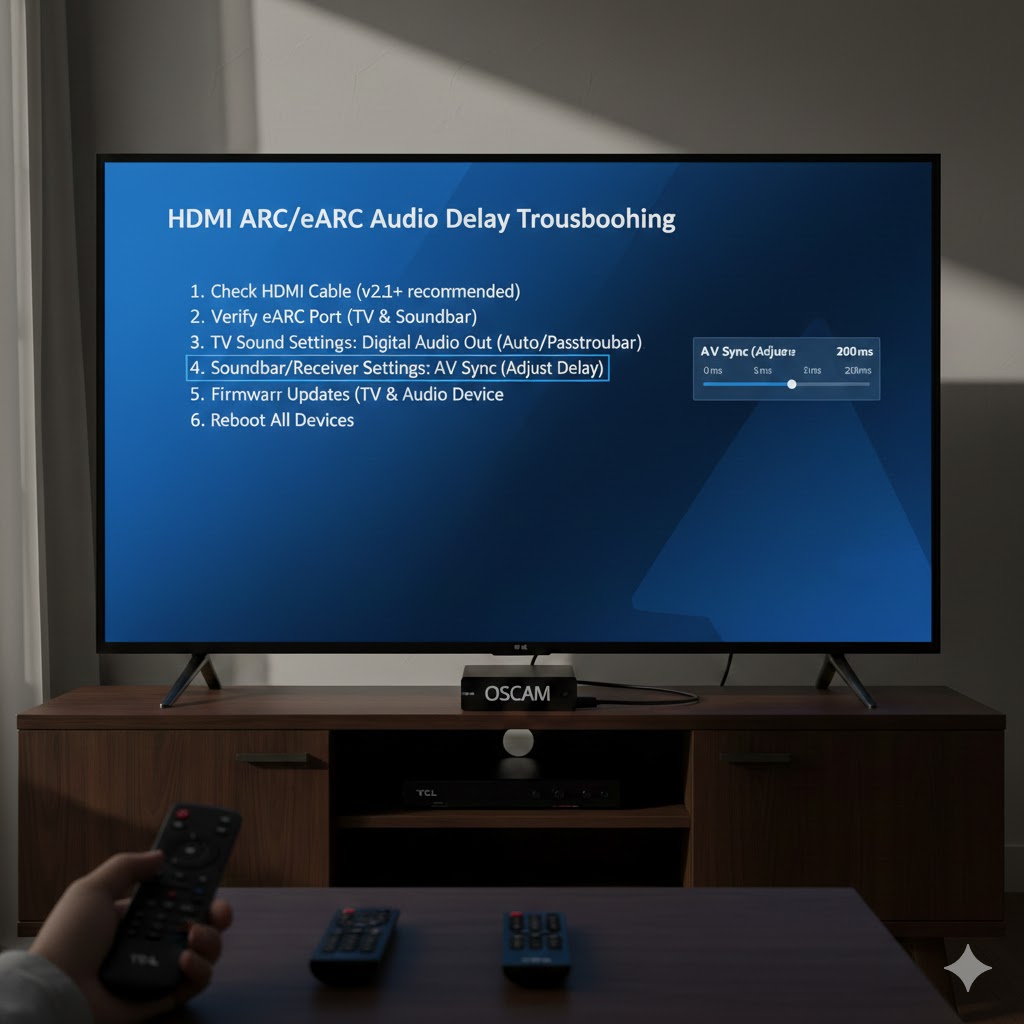
How to Fix HDMI ARC/eARC Audio Delay: A Troubleshooting Guide
HDMI ARC (Audio Return Channel) and its successor, eARC (enhanced Audio Return Channel), are fantastic features that simplify home theater setups by allowing audio to be sent from your TV to a soundbar or AV receiver using a single HDMI cable. This eliminates the need for a separate optical or coaxial audio cable. However, sometimes users encounter an annoying issue: audio delay or lip-sync problems.
If you’re experiencing a noticeable lag between the picture and the sound, don’t worry! Here’s a comprehensive troubleshooting guide to help you fix HDMI ARC/eARC audio delay.
1. Check Your HDMI Cable (v2.1+ Recommended)
The quality and version of your HDMI cable can significantly impact ARC/eARC performance.
-
Upgrade to High-Speed HDMI (v2.1+): While ARC can work with older HDMI cables, eARC, with its higher bandwidth requirements for uncompressed audio formats like Dolby Atmos and DTS:X, often performs best with HDMI 2.1 certified cables. These cables are designed to handle the increased data throughput.
-
Ensure Good Condition: Inspect your cable for any kinks, cuts, or loose connectors. A damaged cable can lead to signal degradation and audio issues.
-
Length Matters: For longer runs, consider active HDMI cables or fiber optic HDMI cables to maintain signal integrity.
2. Verify eARC Port (TV & Soundbar/Receiver)
Not all HDMI ports are created equal.
-
Identify the Correct Port: Both your TV and your soundbar/AV receiver will have a specific HDMI port designated for ARC or eARC. Look for labels like “HDMI ARC,” “HDMI eARC,” or “HDMI (ARC).” Make sure you’re connecting the cable to these specific ports on both devices.
-
Enable eARC (if applicable): On newer TVs and audio devices, you might need to manually enable the eARC feature in the sound settings. Check your TV and soundbar/receiver manuals for instructions.
3. TV Sound Settings: Digital Audio Out (Auto/Passthrough)
Your TV’s audio output settings are crucial for proper ARC/eARC functionality.
-
Digital Audio Out Format: Navigate to your TV’s sound settings and look for “Digital Audio Out,” “HDMI Audio Out,” or similar options.
-
Select “Auto” or “Passthrough”: Ideally, you want your TV to pass through the original audio signal without processing it. Selecting “Auto” or “Passthrough” (sometimes called “Bitstream” or “Raw”) allows your soundbar/receiver to decode the audio, which is generally preferred for surround sound formats.
-
Avoid PCM: If your TV is set to output PCM (Pulse Code Modulation), it’s converting the audio, which can sometimes introduce latency, especially with complex audio formats.
-
Disable TV Speakers: Ensure that your TV’s internal speakers are disabled when using ARC/eARC to avoid audio conflicts.
4. Soundbar/Receiver Settings: AV Sync (Adjust Delay)
Many soundbars and AV receivers include an “AV Sync” or “Lip Sync” adjustment feature. This is often the most direct way to compensate for audio delay.
-
Access the Setting: Go into the settings menu of your soundbar or AV receiver. Look for options like “AV Sync,” “Lip Sync,” “Audio Delay,” or “HDMI Delay.“
-
Adjust Incrementally: This setting usually allows you to add or subtract milliseconds of delay. Start by making small adjustments (e.g., 10-20ms at a time) and play content with dialogue to see if the sync improves.
-
Test with Different Content: Test with various sources (streaming apps, Blu-ray, cable box) to find a setting that works best generally.
5. Firmware Updates (TV & Audio Device)
Outdated firmware can be a source of many bugs, including ARC/eARC issues.
-
Check for Updates: Visit the manufacturer’s support websites for both your TV and your soundbar/AV receiver. Look for the latest firmware versions and follow their instructions carefully to perform any available updates.
-
Automatic Updates: Some devices have an option for automatic firmware updates. Ensure this is enabled if available.
6. Reboot All Devices
A simple reboot can often resolve temporary glitches.
-
Power Cycle: Turn off your TV, soundbar/AV receiver, and any connected source devices (cable box, streaming stick). Unplug them from the power outlet for a few minutes (e.g., 5-10 minutes).
-
Plug Back In: Plug everything back in and turn them on. Sometimes a fresh start can resolve handshake issues between devices.
Additional Tips:
-
Minimize Devices: If you have a complex setup with multiple devices connected to your TV, try simplifying it temporarily to isolate the issue. Connect your soundbar directly to the TV’s ARC/eARC port and test.
-
Source Device Settings: Some source devices (e.g., Blu-ray players, gaming consoles) also have audio delay settings. Check these if the issue persists with a specific source.
-
Factory Reset: As a last resort, you might consider performing a factory reset on your TV and soundbar/receiver. Be aware that this will erase all your custom settings, so make sure to note them down first.
By systematically going through these troubleshooting steps, you should be able to identify and resolve the HDMI ARC/eARC audio delay and enjoy perfectly synchronized audio and video.