
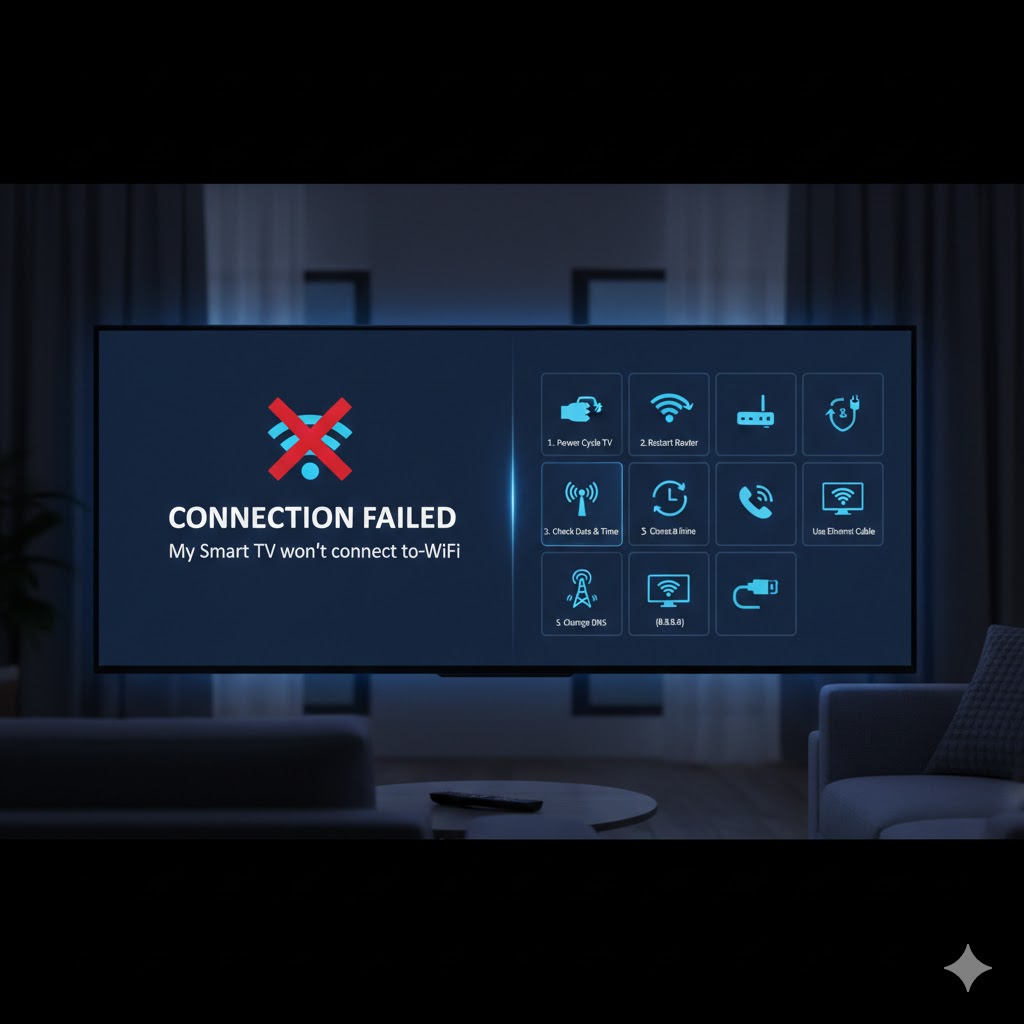
Having a Smart TV that won’t connect to Wi-Fi is incredibly frustrating, especially when you’re ready to binge-watch your favorite show. Since most modern TVs rely on a stable internet connection for almost every feature, a “Connection Failed” error can feel like a total roadblock.
Here are 10 proven ways to fix your Smart TV Wi-Fi connection issues, ranging from simple restarts to more advanced settings.
1. Power Cycle Everything (The “60-Second Rule”)
The most common fix is often the simplest. Electronics can experience “static buildup” or software glitches that a simple restart won’t fix.
-
The Fix: Unplug your TV from the wall outlet and wait 60 full seconds. While it’s unplugged, press and hold the power button on the TV itself for 30 seconds (this drains any remaining power). Plug it back in and try to connect.
2. Restart Your Router
Your TV might be fine, but your router might have “assigned” an IP address conflict.
-
The Fix: Unplug your router for 30 seconds and plug it back in. Wait for all the lights to turn green before trying to reconnect the TV.
3. Check the Date and Time Settings
This is a “hidden” cause that many people miss. If your TV’s internal clock doesn’t match the current time, security certificates for Wi-Fi and apps (like Netflix) will fail.
-
The Fix: Go to Settings > System > Date & Time. If it’s set to “Manual,” change it to “Automatic” or “Sync with Network.”
4. Toggle the “IP Settings” to Automatic
Sometimes, a manual IP entry gets stuck.
-
The Fix: Go to your TV’s Network Settings and look for IP Settings. Ensure it is set to “Get Automatically” or “DHCP.”
5. Change the DNS Server
The DNS (Domain Name System) provided by your internet provider can sometimes be slow or blocked. Using Google’s public DNS often solves connection stability issues.
-
The Fix: Under Network Settings, change the DNS from “Automatic” to “Manual” and enter 8.8.8.8 (Google) or 1.1.1.1 (Cloudflare).
6. Toggle the 2.4GHz vs. 5GHz Band
Most routers are “Dual Band.”
-
5GHz is faster but has a very short range and struggles with walls.
-
2.4GHz is slower but penetrates walls much better.
-
The Fix: If your TV is in a different room than the router, try connecting to the 2.4GHz band.
7. Disable “Quick Start” or “Instant On” Mode
Features like Samsung’s “Instant On” or LG’s “Quick Start+” keep the TV in a low-power sleep mode. This can sometimes cause the Wi-Fi card to stay “asleep” even when the TV is on.
-
The Fix: Go to Settings > General and turn off these power-saving modes, then restart the TV.
8. Remove USB Devices
Believe it or not, USB hard drives or sticks plugged into the TV can sometimes create electromagnetic interference that messes with the internal Wi-Fi antenna.
-
The Fix: Unplug any USB devices and try the connection again.
9. Check for Interference
Smart TVs are often placed near other electronics that disrupt Wi-Fi signals.
-
The Fix: Ensure there are no baby monitors, microwave ovens, or cordless phones directly between your router and the TV. Even a large mirror can reflect and weaken Wi-Fi signals.
10. The Ultimate Backup: Use an Ethernet Cable
If your Wi-Fi card is physically damaged or the signal is just too weak, a wired connection is the best solution.
-
The Fix: Plug a standard Ethernet (LAN) cable from your router directly into the back of your TV. This provides a faster, lag-free connection and bypasses the Wi-Fi hardware entirely.