
Setting Up a “Zero-Lag” Home Network for 8K & Cloud Gaming
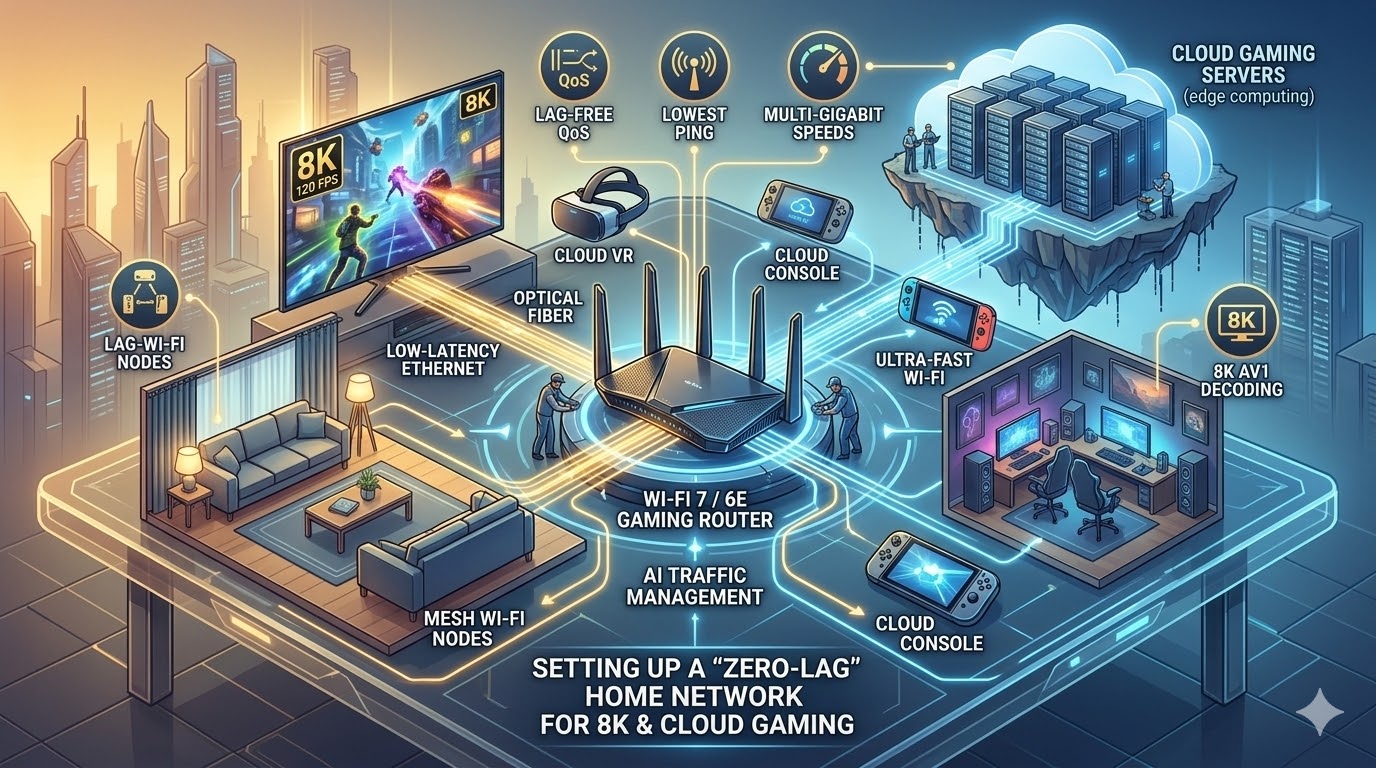
For tvosguide.com readers, 2026 has brought us incredible 8K displays and cloud gaming services like GeForce Now that rival local hardware. However, these technologies are only as good as the “pipes” carrying the data. If you are still using the router your ISP gave you three years ago, you are likely hitting a bottleneck.
1. The 8K Bandwidth Reality
Streaming native 8K content or high-bitrate 4K (like Sony’s Bravia Core) requires a sustained, stable connection.
-
The Target: You need a minimum of 80–110 Mbps of dedicated bandwidth just for the video stream.
-
The Buffer: To account for other devices in your home, your total internet plan should be at least 500 Mbps, though Gigabit is the 2026 standard for enthusiasts.
2. Wi-Fi 7: The “Ethernet Killer?”
In 2026, Wi-Fi 7 (802.11be) has finally made wireless gaming viable. The secret is Multi-Link Operation (MLO).
-
How it works: Older Wi-Fi could only use one band at a time (2.4GHz or 5GHz). Wi-Fi 7 devices can connect to multiple bands simultaneously.
-
The Result: If someone starts a microwave or a neighbor’s router interferes with the 5GHz band, your stream instantly shifts more data to the 6GHz band without a single dropped frame. Latency is now consistently under 5ms, which is the “holy grail” for cloud gaming.
3. Powerline Adapters: The 2026 Comeback
If you live in an older home with thick stone or concrete walls, even Wi-Fi 7 can struggle. This is where G.hn Wave 2 Powerline adapters come in.
-
The Tech: Unlike the glitchy adapters of a decade ago, 2026 models like the TP-Link PG2400P use your home’s electrical wiring to create a stable, wired backbone.
-
The Speed: They now reach theoretical speeds of 2,400 Mbps. While real-world speeds are usually around 400–600 Mbps, the jitter (variation in lag) is nearly zero, making them far superior to Wi-Fi for cloud gaming in distant rooms.
Setup Checklist: Your Zero-Lag Roadmap
The tvosguide.com Professional Tip: The “6GHz VIP Lane”
If your router supports it, create a separate SSID (network name) specifically for the 6GHz band. Connect only your 8K TV and your gaming console to this network. By keeping “noisy” devices like smart bulbs, older phones, and printers on the 2.4GHz/5GHz bands, you ensure your entertainment gear has a dedicated, interference-free lane.